
• Home
  • About Tracy
  • Contact Me

Using Time Wisely

Organized to save money, energy, and time

  • Email
  • Facebook
  • Pinterest
  • RSS
  • Twitter
  • YouTube
  • Document Organization
    • Overview
    • Box 1
      • Credit Report/Cards
        • Credit Reports
          • Credit Updates
          • Credit Scores
        • Credit Cards
      • Personal
      • Home Ownership
      • Vehicles
    • Box 2
      • Life Insurance
      • Major Medical
      • Tax-Favored Programs
      • Prescriptions
      • Dental & Vision
      • Special Health Policies
      • Short-term Disability
      • Long-term Disability
      • Personal Insurance
    • Box 3
      • Social Security Documents
      • Retirement
      • Investments
      • Estate Planning
      • Tax Records
  • Household
    • Cleaning
    • Maintaining
    • Organizing
    • Scheduling
      • Laundry
  • Event Planning
    • Assisting
    • Attending
    • Coordinating
      • Birthday Party
      • Christmas
      • Dinner Party
      • Fall Festival
      • Field Trip
      • Lemonade Stand
      • Thanksgiving
    • Learning
    • Preparing
    • Serving
  • Miscellaneous
    • Communication
      • Customer Service
      • E-mail
      • RSS Feed Reader
    • Goals
    • Organization
    • Time Management
      • To Do List
  • Food
    • Food Prep
    • Grocery Shopping
      • Lists
      • Pricing
    • Menu Planning
    • Recipes
    • Stockpile
  • Family Activities
    • Going Out
      • Free Outings
      • Inexpensive Outings
      • Summer
    • Rewards
      • Good Grades
      • Reading
      • Summer Reading
    • Staying at Home
  • Stretching Your Dollars
    • Daily Deals
      • Groupon
      • LivingSocial
    • Drugstores
      • CVS
    • Gas Prices
    • Gifts
    • On-line Shopping
    • Pictures
    • Products
    • Restaurants
    • School Items
    • Tips
You are here: Home / 2011 / Archives for June 2011

Archives for June 2011

CVS: 3 Transactions + 6 Products = $1.68

June 25, 2011 by Tracy

Photograph Credit: CVS

Last Saturday, I made a shopping trip to my CVS only to discover a company policy change regarding uploading the next week’s sales.

Prior to last week, my CVS activated the new week’s sales at noon on Saturdays. Now the new sales are loaded into the system, but the computer does not activate those sales until 4:00 p.m. on Saturday.

It was a little setback as I arrived at 3:30 p.m. and had gathered my items in about 10 minutes. Never fear, I used my time wisely to exchange one of our propane tanks at Bi-lo, which is next door. When I returned to CVS, it was after 4:00 p.m.

Do you want to see what I purchased and how I stretched my dollars? I thought you might, so I took a picture. Here are the items I purchased:
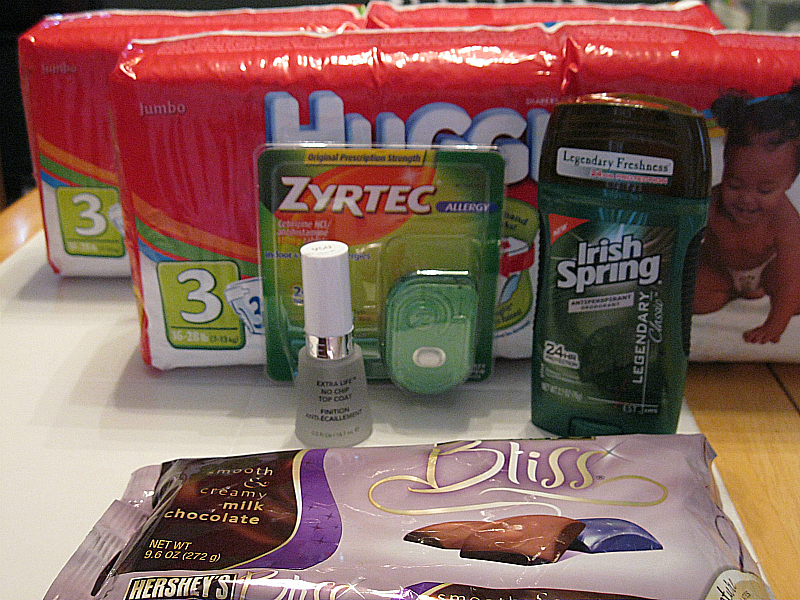
To keep my out-of-pocket (OOP) total to a minimum, I purchased these 6 items in 3 transactions.

Transaction #1

1 Zyrtec – 5 count for $5.99

1 Irish Spring Deodorant – $3.99

Scanned my green bag tag to earn a $1 Extra Buck after 4 visits – $0

Subtotal: $9.98

Used $2.50 coupon for Zyrtec

Used $1 coupon for Irish Spring Deodorant (printable)

Used $5 Extra Bucks due to expire from a previous visit

New Subtotal: $1.48

Tax: $0.09

Total: $1.57 – paid using the gift card received from filling a prescription

OOP: $0 and received Extra Bucks: $5.99 (Zyrtec) and $2 (Irish Spring)

Transaction #2

1 Revlon nail polish – $4.99

1 Hershey’s Bliss Chocolates – $5.99

Subtotal: $10.98

Used $1 coupon for Revlon

Used $1 coupon for Hershey’s

Used $5.99 Extra Bucks from Transaction 1

Used $2 Extra Bucks from Transaction 1

New Subtotal: $0.99

Tax: $0.03

Total: $1.02 – paid with gift card received from filling a prescription

OOP: $0 and received Extra Bucks: $3 (Revlon) and $6 (Hershey’s) – on Saturday the Hershey’s Extra Bucks ($5.99) did not print, so the employee manually issued the Extra Bucks for $6.

Transaction #3

2 Jumbo packages of Huggies diapers – $8.99 each

Subtotal: $17.98

Used $3 coupon for Huggies

Used $3 coupon for Huggies

Used $6 Extra Bucks from Transaction2

Used $3 Extra Bucks from Transaction2

New Subtotal: $2.98

Tax: $0.18

Total: $3.16 – paid $1.48 from remaining balance on gift card

OOP: $1.68 (cash) and received Extra Bucks: $2 ($1 for each package of Huggies)

By purchasing items in multiple transactions, I am able to stretch our dollars to keep the out-of-pocket expense low. I willingly spent the $2 on diapers, nail polish, and chocolate. The Zyrtec and deodorant were a bonus money-maker and freebie. I purchased $43.56 worth of product for $1.68 which is a savings of $41.88 or 96%.

These are the results of my shopping trip. What great deals have you seized to stretch your dollars? Remember to start slow. You will get to great savings as you learn from each shopping trip. Keep up the great savings!


Filed Under: CVS, Drugstores, Stretching Your Dollars Tagged With: CVS

Kraft: Minor League Baseball Tickets

June 24, 2011 by Tracy

Photograph Credit: MiLB

Our family loves this deal! My oldest daughter talks about the mascot all the time. When we finally get to the game, she hides from him. Did I mention she is 3-years-old? 🙂

Since our family feeds off Kraft Singles throughout the year, I save every wrapper for this buy one get one free ticket deal at our local minor league stadium. Here are my tips for taking advantage of this deal:

  1. You will need one Kraft Singles wrapper for each buy one get one free deal. For my family of 5, I will need 4 tickets since my 16-months daughter gets in free. When I go to the box office, I will take 2 Kraft Singles wrappers. I will purchase 2 tickets and get 2 tickets for free. Our tickets are $7-8 per ticket, so I will pay $14-16 per game.
  2. Check your local minor league baseball web site for additional promotions. In addition to the buy one get on free tickets on Tuesday nights, our local ballpark combines a kids eat free promotion. Bi-Lo, a local grocery store chain, sponsors this event. As we enter the stadium, we are handed 3 vouchers (one per child). Then each voucher can be redeemed for a hot dog, chips, and drink. The drink is small, but it is free.
  3. Try to purchase tickets in advance. At our ballpark, tickets are $1 more on the day of the game.
  4. Purchase only the tickets you will use. The tickets at our stadium will not be exchanged for better seats or another game. Be sure to choose your seats carefully.
  5. Take your sunscreen or sunblock to the game. The sun is still shining brightly at 7:00 p.m. here in South Carolina. To prevent sunburns, remember your sun protection.

Visit the minor league baseball web site to find your local team. If you take advantage of this deal, then use your time wisely and enjoy the game with your family!

Filed Under: Going Out, Inexpensive Outings, Family Activities Tagged With: summer

Summer Camp: Free 3-Day Workshop at Apple Stores

June 24, 2011 by Tracy

Photograph Credit: Apple

At Apple Camp, kids aged 8-12 learn how to shoot their own footage, create an original song in GarageBand on an iPad, and put it all together in iMovie on a Mac. This free workshop, held at the Apple Store, spans three days and ends with campers debuting their masterpieces at the Apple Camp Film Festival. Space is limited and workshops fill up quickly so sign up now for a super creative adventure.

To find a participating Apple store, registration form, and detailed camp itineraries, you can click here to be directed to the Apple web site.

Filed Under: Going Out, Summer, Family Activities Tagged With: summer

June 16: Bi-Lo and Publix Shopping Trip Results

June 23, 2011 by Tracy

After the break from shopping, I am back into the savings groove. Knowing I missed lots of sales that may not be repeated for the next 6 weeks, I am not sweating it. The sales will come back around, and my family will survive on what sales I can match with coupons.

Though the deals were not fantastic last week at my Bi-Lo and Publix, I did snag these good deals:

BI-LO

1. Dozen large eggs for $.99 each

2. Baby-cut carrots for $.99 each and paired with competitor (Publix) coupon for $2 off product item. Using the coupon with this purchase resulted in free carrots and $1.01 in overage. This overage was applied to another product, like the eggs. Since I had 2 coupons and each stated “one coupon per purchase,” I divided my purchases up into two transactions and used one Publix coupon per sale.

TIP: If you will have overage, like the $1.01 for the carrots, then purchase another item to absorb the savings in your transaction. For example, purchase the carrots and another item $1.02 or more (after coupons) in the same transaction. Most stores will not give you money back.

3. Bone-in split chicken breasts with rib meat at $.89 per pound. This price was lower than my rock bottom price of $.99 per pound. I purchased 3 packages which after cut up netted 15 skinless, boneless chicken breasts, 15 tenderloins, and 6 cups of chicken broth. Here is the tutorial for cutting up the chicken.

With my 2 transactions at Bi-Lo, I purchased $100.38 worth of product for $36.68 which was a savings of $63.70 or 63%. I was pleased with this trip with the limited number of deals this week.

PUBLIX

1. Tombstone Pizzas for $3.15 each

2. Package of smoked white turkey deli meat for $2.09

3. EGGO waffles for $1.29 each

4. Oscar Meyer Lunchables for $1 each

5. Yoplait Fiber One yogurt for $1 paired with $.50 coupon that doubled making the yogurt free.

My total at Publix resulted in $135.66 in merchandise for $60.06 which was a savings of $75.60 or 56%.

Both of my shopping trips resulted in over 50% savings which is my goal. Now that I am back to saving and restocking my pantry, refrigerator, and freezer, I am ready to shop again this week. How are your savings panning out? Please leave a comment indicating your savings from feeding your family.

Filed Under: Grocery Shopping, Food Tagged With: grocery store

RSS: Feed Reader – Part 2 of 5

June 22, 2011 by Tracy

Photograph Credit: Wikipedia

Our topic last week included defining and explaining the RSS which will be a huge timesaver for those who read multiple blogs and web sites. If you want to use your time wisely while keeping up-to-date, then let’s setup a reader to accept all the RSS from your favorite web sites.

There are a number of readers from which to choose, e.g., Yahoo, Newsgator, Bloglines, and many more. My reader of choice is Google which I have used for a few years without any problem. Since I highly recommend Google Reader, I will show you here how to setup your own account.

STEP ONE: Log in to your Google Account.

Do you have a Google account?

  • If yes, then log in to your account and proceed to step 2. (If you have a GMAIL account, e.g., mywebsite@gmail.com, then you have a Google account.) Go to www.google.com, enter your e-mail address and password, and click SIGN IN.
  • If no, then no worries, you can get an account for free. Just follow these instructions:

TO SET UP A GOOGLE ACCOUNT:

  1. In your Internet browser, type in www.google.com.
  2. On the home page, click the “SIGN IN” link in the top right corner.
  3. When directed to GOOGLE ACCOUNTS page, click on CREATE AN ACCOUNT NOW on the right side under DON’T HAVE A GOOGLE ACCOUNT?
  4. At the CREATE AN ACCOUNT page, fill out the form, and click I ACCEPT. CREATE MY ACCOUNT.
  5. You should then see ACCOUNT CREATED. PLEASE VERIFY YOUR CURRENT EMAIL ADDRESS. You can either click to button to verify your e-mail or click on the REQUEST AN EMAIL VERIFICATION. Be sure to verify your account in one of these two ways to proceed.
  6. After you receive the EMAIL ADDRESS VERIFIED message, then double-click on CLICK HERE TO MANAGE YOUR ACCOUNT PROFILE. You will be directed to the GOOGLE ACCOUNTS page. Your login name will appear in the top right of the page. Now proceed to STEP TWO.

STEP TWO: Add your Reader.

  1. Once logged in, click on your e-mail address in the top right corner of the page.
  2. Select ACCOUNT SETTINGS from the drop down list.
  3. On the GOOGLE ACCOUNTS page, scroll down to TRY SOMETHING NEW, and click on MORE >>.
  4. Don’t get overwhelmed with all the options. Just scroll down about halfway, and locate READER under SOCIAL on the left column. Click on READER.
  5. Your GOOGLE READER will open with new 3-5 items for your review.

STEP THREE: Checking your Reader.

Now, when you close out of Google or restart your computer, here is how to navigate back to your Google Reader:

  1. In your Internet browser (Explorer, Firefox, Chrome, etc.), type www.google.com.
  2. At the home page, sign in with your e-mail address and password, and click SIGN IN.
  3. Your Google Reader may reappear. If it does not, then choose READER from the menu bar, i.e., mail, calendar, documents, photos, reader, etc. The menu bar is located above the words GOOGLE or GMAIL.

CONGRATULATIONS! You now have a Google account with your Reader activated. I’m proud of you! You are on your way to using your time wisely while reading your favorite web sites. Though your account may be empty now, next week I’ll show you how to add your favorite web sites to your reader.

Filed Under: Communication, RSS Feed Reader, Miscellaneous Tagged With: RSS Feed Reader

« Previous Page
Next Page »

Welcome to Using Time Wisely!


Presenting organizational tips and tricks to save you money, energy, and time.

To access 5 Ways to Using Time Wisely Today, click "like" on my facebook page and join in on the journey of Using Time Wisely.

Looking for something?

Email Newsletter

Sign up to receive email updates and to hear what's going on with us!

Copyright © 2026 · Lifestyle Pro Theme on Genesis Framework · WordPress · Log in