• Home
  • About Tracy
  • Contact Me

Using Time Wisely

Organized to save money, energy, and time

  • Email
  • Facebook
  • Pinterest
  • RSS
  • Twitter
  • YouTube
  • Document Organization
    • Overview
    • Box 1
      • Credit Report/Cards
        • Credit Reports
          • Credit Updates
          • Credit Scores
        • Credit Cards
      • Personal
      • Home Ownership
      • Vehicles
    • Box 2
      • Life Insurance
      • Major Medical
      • Tax-Favored Programs
      • Prescriptions
      • Dental & Vision
      • Special Health Policies
      • Short-term Disability
      • Long-term Disability
      • Personal Insurance
    • Box 3
      • Social Security Documents
      • Retirement
      • Investments
      • Estate Planning
      • Tax Records
  • Household
    • Cleaning
    • Maintaining
    • Organizing
    • Scheduling
      • Laundry
  • Event Planning
    • Assisting
    • Attending
    • Coordinating
      • Birthday Party
      • Christmas
      • Dinner Party
      • Fall Festival
      • Field Trip
      • Lemonade Stand
      • Thanksgiving
    • Learning
    • Preparing
    • Serving
  • Miscellaneous
    • Communication
      • Customer Service
      • E-mail
      • RSS Feed Reader
    • Goals
    • Organization
    • Time Management
      • To Do List
  • Food
    • Food Prep
    • Grocery Shopping
      • Lists
      • Pricing
    • Menu Planning
    • Recipes
    • Stockpile
  • Family Activities
    • Going Out
      • Free Outings
      • Inexpensive Outings
      • Summer
    • Rewards
      • Good Grades
      • Reading
      • Summer Reading
    • Staying at Home
  • Stretching Your Dollars
    • Daily Deals
      • Groupon
      • LivingSocial
    • Drugstores
      • CVS
    • Gas Prices
    • Gifts
    • On-line Shopping
    • Pictures
    • Products
    • Restaurants
    • School Items
    • Tips
You are here: Home / 2011 / Archives for August 2011

Archives for August 2011

ArtsCow.com: Photo Prints and Gifts – Part 2 of 2

August 27, 2011 by Tracy

Photograph Credit: ArtsCow.com

In Part 1 of this 2-part series, I shared my love for personalized gifts, and one solution to getting photo books without paying full price. A solution to stretching my dollars is using ArtsCow.com.

Note: This is my referral link. By registering through this link, Using Time Wisely gets compensated without any cost to you. Your support of Using Time Wisely is greatly appreciated. For more information on my affiliate links, you can read my full disclosure policy.

I shared how this company is adaptable, user-friendly, and affordable. Today, I will explain how to place an order on their web site using your free credits and discounts.

When you are ready to order your free prints and other photo gift credits:

Log in to your ArtsCow.com account

1. Go to www.artscow.com.

2. Click on MY ACCOUNT from the menu bar at the top of the page.

3. Log in to your account using your e-mail and password.

Create a new album

1. In the MEMBERS AREA on the left sidebar, choose MY ALBUM.

2. Then scroll down to the bottom of the page, and select NEW ALBUM.

3. Change the ALBUM NAME, ALBUM DESCRIPTION, and ALBUM DATE, and click CONTINUE.

Upload your photos to the album

You can choose the Basic Upload or the Quick Upload. If you only have 20-50 pictures, then the basic upload will be fine.

To use the basic upload:

1. Click CHOOSE FILE

2. Select the pictures from your computer.

      • If you want to select more than one, then click the first picture and then hold down your CTRL key and click any other pictures you want to upload.
      • If you want to select an entire folder or a series of pictures in order, then click the first one and press your SHIFT key and click on the last picture you want. All the pictures between the first and last will be highlighted.
      • When all the pictures you want in that folder are highlighted, click OPEN.

3. If you need more photographs from another folder, then click CHOOSE FILE and repeat steps 2-3.

4. When all your photographs have been chosen, then click UPLOAD PHOTOS.

Since I usually upload 100 or more pictures at time, my preference is the Quick Upload option.

To use the quick upload:

1. Click MULIT FILE UPLOADER

You will need Microsoft Silverlight program. If you do not have this program installed on your computer, ArtsCow.com will provide the link to download. (You will only need to download it once.)

2. With Microsoft Silverlight installed, select your album name or create a new one.

3. Click ADD PHOTOS.

4. Select the pictures from your computer.

      • If you want to select more than one, then click the first picture and then hold down your CTRL key and click any other pictures you want to upload.
      • If you want to select an entire folder or a series of pictures in order, then click the first one and press your SHIFT key and click on the last picture you want.
      • All the pictures between the first and last will be highlighted.

5. When all the pictures you want in that folder are highlighted, click OPEN.

6. If you need more photographs from another folder, then click CHOOSE FILE and repeat steps 2-3.

7. When all your photographs have been chosen, then click UPLOAD PHOTOS.

8. Once the photos are uploaded to ArtsCow.com, you can move them to a different folder, choose to order prints, or go to CREATE YOUR OWN STUFF on the green menu bar under the ArtsCow.com title (for photo albums, calendars, etc.).

Place the photo prints order

1. Select the photos you want to print by either clicking the box: CHECK ALL PHOTOS IN THIS ALBUM or click the box next to each photo you want to print.

2. Then ADD TO CART.

The free photo print credits will be auto applied

When you have selected all your items, choose CHECK OUT.

Enter Billing/Shipping Information

Check out by PayPal or Credit Card

TIP: Be patient for your order to arrive. This company is based in Hong Kong, so international shipping takes about 2 weeks for delivery.

The ordering process is not difficult, but it has lots of steps. In using time wisely and preparing in advance, you can snag some great photo deals without breaking the bank through ArtsCow.com. This company continues to help me in stretching our dollars with all the credits and discounts.

Question: Which type of photo gift is your favorite? Please add your answer by clicking the Leave your Comment button.
Filed Under: Pictures, Stretching Your Dollars Tagged With: Artscow.com

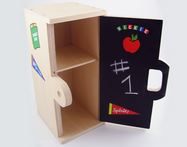
Lowe’s Build and Grow: School Locker

August 26, 2011 by Tracy

Photograph Credit: Lowe's

Depending on how much rain we get this weekend from Hurricane Irene, our family may or may not be attending our local Lowe’s home improvement store. This storm is huge! For those of you in Irene’s path, please use your time wisely and find safety during the storm.

If you are venturing out Saturday morning for a family activity, then you might want to add a stop at your local Lowe’s Build and Grow clinic.

What: Build a free school locker
When: Saturday, August 27, 2011
Where: Your local Lowe’s home improvement store
Time: 10:00 a.m. to 11:00 a.m.

These clinics fill up quickly. Be sure to register your attendance at your local Lowe’s and arrive no later than 10:15 a.m. to the event. For other tips and details on the Lowe’s Build and Grow clinics, refer to my detailed post here.

Photograph Credit: Lowe's

After this Saturday’s event, the next Lowe’s Build and Grow project will be on Saturday, September 10, 2011, building a police car. You can register for both the August 27 and the September 10 events through Lowe’s web site.

Wishing you all a great, safe, family-filled weekend!

Question: Are you planning to stay in or go out this weekend? Please leave your answer in the comments.

Filed Under: Going Out, Free Outings, Family Activities Tagged With: Lowe's

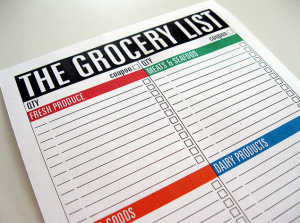
Grocery Shopping: Creating your Grocery Lists – Part 2a of 3

August 25, 2011 by Tracy

Photograph Credit: Flickr (Grungezombie)

In an effort to feed my family nutritious meals on an $80 a week budget, I have a system to help me accomplish this goal. This system may be too complicated for you. No problem! Find a system that works for you!

Though you may use this same process, please do not feel like you must force this square peg (my process) into your round board (your life). Remember, this is just one option that works for me right now.

In Creating your Grocery List – Part 1 last week, I shared a detailed overview of my process for menu planning and started explaining my grocery shopping process.

Thus far, I have identified needed items from the pad of paper on my refrigerator and my supply areas: pantry, refrigerator, and freezers. With this list in hand, I am now ready to select sale items for Part 2 of my process which involves 6 steps. In keeping it manageable, I will share the first 2 steps this week. Hang in there . . . I’m going to take this slowly.

Step 1: Consult a helpful web site

Since I live in a southeastern state in the United States, I consult www.southernsavers.com. Jenny Martin has a fabulous web site for southern grocery stores and drugstores. Jenny’s link is on the right sidebar of my home page. You can easily access her web site for grocery store and drugstore deals from Using Time Wisely.

If you do not live in a southeastern state, but you are in the United States, then you can access THE GATHERING at www.becentsable.net. Chrissy has identified web sites in your state that list local grocery store and drugstore deals. You can find THE GATHERING by clicking on Becentsable’s link on my right sidebar under Time Saving Resources. This link on Using Time Wisely will take you directly to THE GATHERING to locate your state and your favorite local stores.

For those of you outside the United States, you might want to use a search engine (i.e., SwagBucks, Google, etc.) with the name of your local grocery store and deals (e.g., MYSTORE deals).

Step 2: Locate your grocery store’s weekly sales ad

Hopefully, finding this information will be easy. Most shopping web sites list the weekly sales ad by the dates of the sale. For this week, I would look for dates August 24 – 30, 2011 (for Wednesday to Tuesday sale days) or August 21-27 (for Monday to Saturday sale days).

I also look for sites that list available coupons for the sale items. This information helps you know where to find a coupon for that item.

Once you locate your favorite web site and find the location of your store’s deals (every web site is different), you will know where to begin next week. These two steps will take seconds once you find what works for you.

Working to find the best web sites for your grocery store deals will be time well spent. I went through two other sites before finding my favorite. Next week, I will continue creating my grocery list by concentrating on the items in the sales ad for steps 3 and 4. Hoping this series is beneficial to you!

Question: For your favorite grocery store, what are their sale days (Monday to Saturday)? To add your answer, please click Leave your Comment.

Filed Under: Lists, Grocery Shopping, Food Tagged With: grocery shopping, grocery lists

Junk E-mail Account – Part 1 of 2

August 24, 2011 by Tracy

Photograph Credit: Flickr (Keri J.)

In using time wisely, I have setup my personal e-mail account for family, friends, payment notifications, daily deals (i.e., Groupon.com), and other information I desire to know quickly.

Since I keep my personal e-mail account open on my computer and laptop, I check my e-mail 5 or more times a day. I update this account each day by keeping it clutter-free.

For more tips on keeping your inbox clutter-free, you can read my four-step series: Step 1, Step 2, Step 3, and Step 4.

Since I request free products, print coupons, play sweepstakes (every once in a while), and submit rebates, I prefer to use another e-mail account for these items. When I request free products, I usually am also subscribing to a free newsletter and updates from that company.

To keep my personal e-mail inbox clutter-free, I use a junk e-mail account for correspondence that does not need my immediate attention. Then I check this junk e-mail account about once a week, deleting unnecessary items and reading items of interest.

My current personal and junk e-mail accounts are with Yahoo!, but I also like Google’s Gmail accounts. So, in Part 1 of this two-part series, we will setup a junk e-mail account in Yahoo!. In Part 2, we will use Gmail for a junk e-mail account. You can choose one or both depending on your needs.

To setup a junk e-mail account in Yahoo!:

1. Type www.yahoo.com into your Internet browser

2. Under the Search bar on the right side, click “New here? Sign up”

3. Register for your new account

4. Fill in your name and personal information

5. Choose an e-mail name for this account – Remember your Yahoo! ID. You will need this information to log back into your account.

6. For the alternate e-mail account, I use my personal e-mail address. If I should forget the password to this new account, I can reset it from my personal e-mail account.

7. Verify the code

8. Click “Create My Account”

9. Yahoo! will then congratulate you and send you a confirmation e-mail to your alternate e-mail account.

To go to your Yahoo! account:

1. Click on “Continue” after Ready to experience Yahoo!?

2. Your welcome e-mail will be in your account.

To log back in to Yahoo!:

1. Type www.yahoo.com into your Internet browser

2. Under the Search bar on the right side, click “Sign in”

3. Type your Yahoo! ID and password, and click “Sign in”

Now when you need to give out your e-mail address, you can use this account and keep your personal account clutter-free. 🙂

Having a junk e-mail account assists me in using time wisely. By keeping my accounts separate, I save time and energy getting the most important information in my personal account and using the junk account for items that are not time sensitive. If you struggle with a clutter-free inbox, then a junk e-mail account may be a solution for you.

Question: What do you think about having separate e-mail accounts? To add your answer, please click the Leave your Comment button.
Filed Under: Communication, E-mail, Miscellaneous Tagged With: email

Birthday Party: 2011 Strawberry Shortcake Itinerary

August 23, 2011 by Tracy

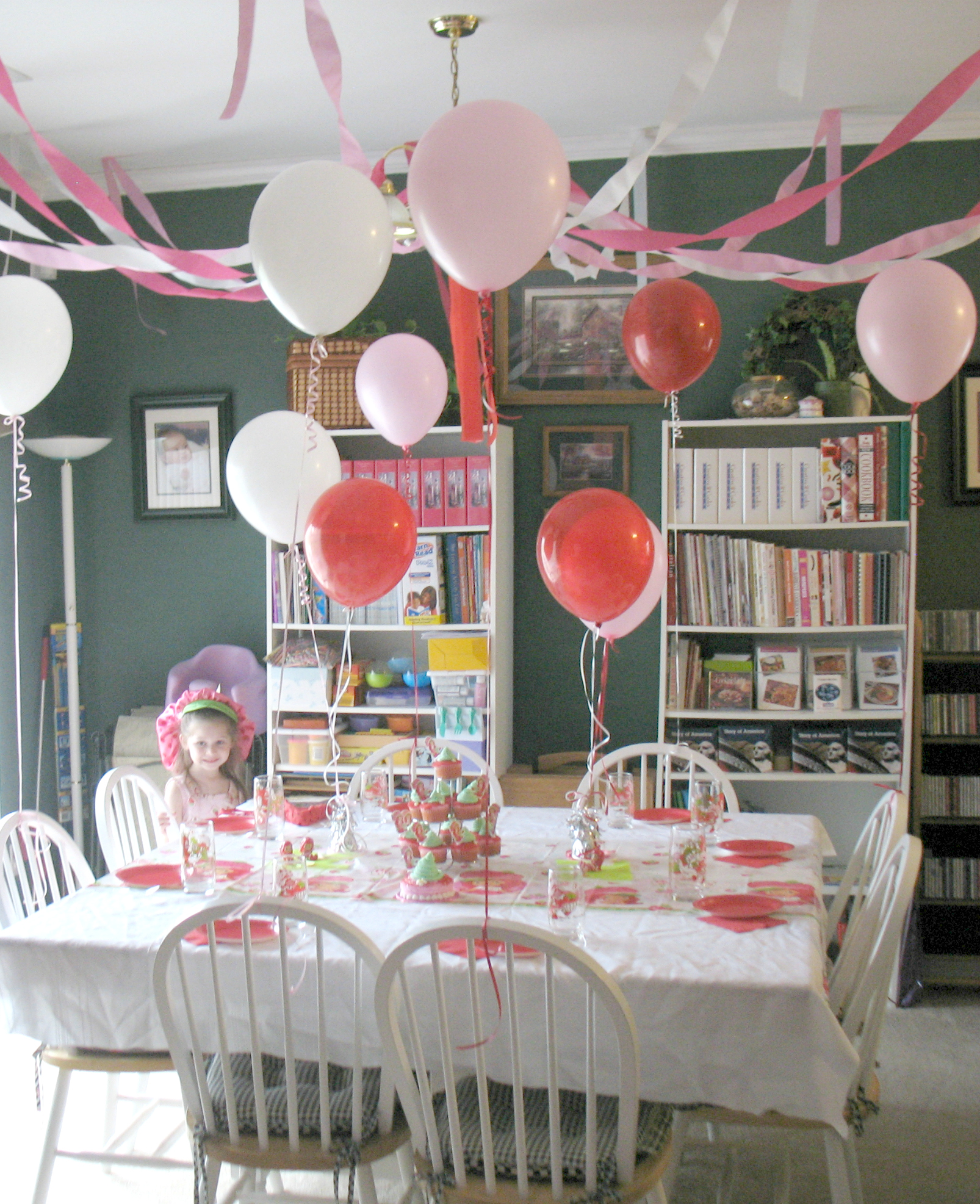
Last week I shared my system of keeping event notes, and how I took my daughter shopping for Strawberry Shortcake items for her party.

Having the guest of honor included in the decision-making process made planning the party simple.

Knowing my daughter’s personality and those of her friends, I enjoyed my daughter’s help in coordinating a fun event for her birthday party.

After weighing the cost, I allowed my daughter to choose the order of the party. Of course, I gave her options:

              • Which game to play first?
              • Which game gets the sunglasses for a prize?
              • When serving the food, where would you like your friends to sit?

With her help, we planned this 2-hour afternoon Strawberry Shortcake birthday party:

Greet each guest as she arrives and bring to toy area to play until we begin the games.

Games

1. Pass the Orange (In honor of Orange Blossom, a friend of Strawberry Shortcake):  A version of Hot Potato, but instead of passing a potato, the players pass an orange. The children sit in a circle, and hand the orange to the person on their right while the music plays. When the music stops, the player holding the orange leaves the game to receive a prize (Strawberry Shortcake hat). Continue play until only one child remains.

2. Strawberry Spoon Race: Relay race consisting of two teams where each team has a spoon and a plastic fruit (strawberry and lemon). One team represented Strawberry Shortcake and the other Lemon Meringue (another friend of Strawberry Shortcake). Teams race down and around a designated item and come back to their team. The player then passes the fruit onto the next teammate’s spoon. If they drop the fruit, they must stop, pick it up, and then continue. The first team to have all players cross their line is the winner. All girls will receive a Strawberry Shortcake bracelet for participation.

3. Strawberry Strawberry Shortcake: The game Duck Duck Goose with Strawberry’s name. The players sit in a circle with one player being “it.” The “it” player goes around the circle patting each girl saying “Strawberry.” Then she chooses one person by saying, “Shortcake.” The player tapped, then chases the patter back to the tapped one’s spot. Then the tapped player becomes “it” or the new patter. 🙂 Each player then receives a pair of Strawberry Shortcake sunglasses.

4. Musical Strawberries: The girls walk around on colored strawberries cut from paper. (The colors represent Strawberry Shortcake, Orange Blossom, Lemon Meringue, Apple Dumpling, Blueberry Muffin, Plum Pudding, Raspberry Torte, and Angel Food.) When the music stops, a color is drawn from a basket. The child on that circle is the winner and proceeds to the dining room to get her cupcake and ice cream.

Food

Strawberry Shortcake cupcakes, strawberries ‘n cream (white with strawberries) or strawberry (pink with strawberries) ice cream, and water or pink lemonade.

Open gifts

Allow each girl to bring her present to my daughter. While sitting with her friend, my daughter opens that gift. This arrangement offers great photo opportunities.

Thank you

Thank each friend for attending her party and for all her gifts.

Goody bags

Give my daughter the goody bags to deliver to each of her friends. Each goody bag contains:

  • Pink, purple, or clear nail polish
  • Pink, purple, or clear lip gloss
  • Strawberry Shortcake fun sheet
  • Strawberry Shortcake stickers
  • Strawberry Shortcake top
  • Pink kaleidoscope
  • Pink ring

Play until friends’ parents arrive to pick up their children.

With our itinerary set, my daughter and I (with additional help) gathered the materials, decorated the space, prepared the food, and waited for our guests. Our plan included time for play, games, food, gifts, gratefulness, and goody bags. Next week, I will conclude this event’s activities with a post on our execution of our planned itinerary.

Question: What is your favorite childhood birthday party game? Please add your answer by clicking on the Leave your Comment button.

Filed Under: Event Planning, Coordinating, Birthday Party Tagged With: Strawberry Shortcake

« Previous Page
Next Page »

Welcome to Using Time Wisely!


Presenting organizational tips and tricks to save you money, energy, and time.

To access 5 Ways to Using Time Wisely Today, click "like" on my facebook page and join in on the journey of Using Time Wisely.

Looking for something?

Email Newsletter

Sign up to receive email updates and to hear what's going on with us!

Copyright © 2026 · Lifestyle Pro Theme on Genesis Framework · WordPress · Log in